
Connect channels
A Fleet Agent can use Slack, email, and Telegram under its own identity. HQ MCP can also connect a running agent to approved HQ tools. Channel credentials live in the company vault, and the Console exposes connection state and diagnostics without revealing tokens.
Slack
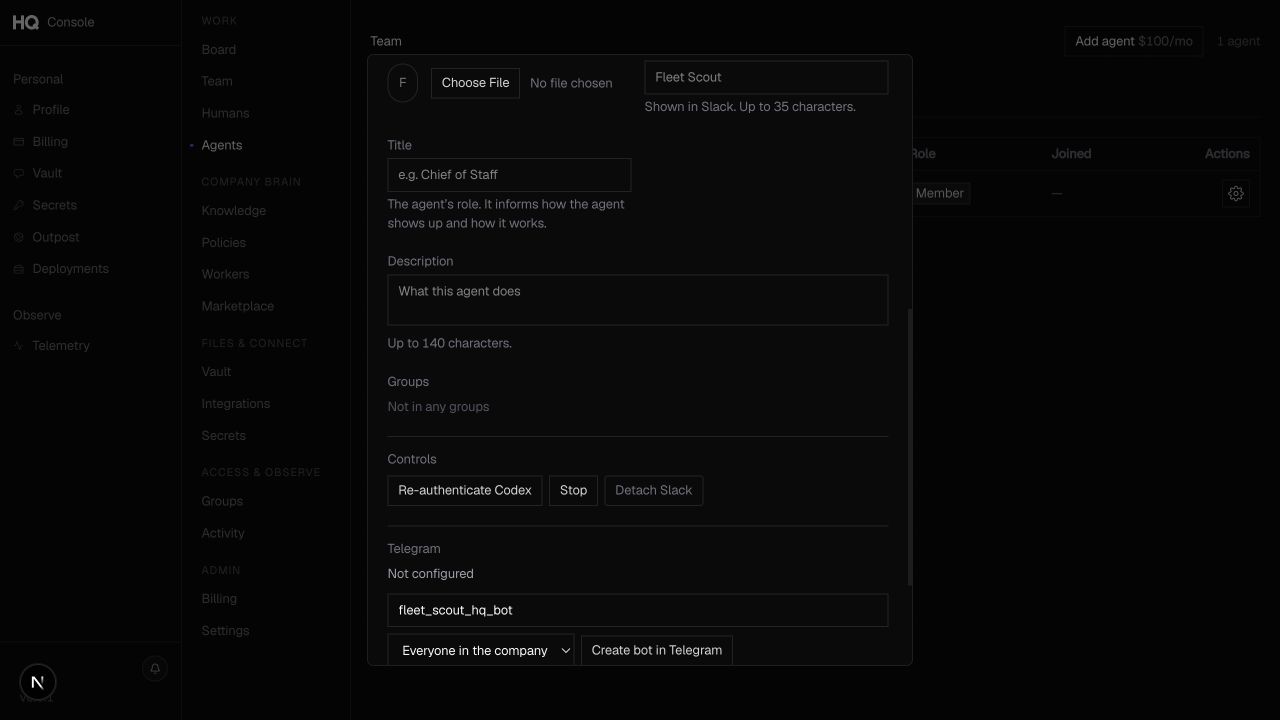
Attach Slack
- Open the agent’s settings.
- Under Slack, choose Attach Slack.
- Approve the Slack authorization screen. Your workspace may require an admin to approve the app.
- Return to HQ Console and confirm the Slack connection is active.
If the Console shows a pending installation, use Finish install to complete that existing flow. Do not detach and reattach Slack as a routine repair. Detach can delete the current app and its credentials, and a new attachment can mint a different app identity.
Add the agent to a channel
Fleet Agents are Slack apps, not people:
- In the target channel, send a message that
@-mentions the agent. - When Slack says the app is not in the channel, confirm Add.
You can also open the channel’s Settings, choose Integrations, and use Add apps. Slack’s /invite command is designed for people and may not offer apps.
When the agent replies
- In a channel, mention the agent to start a conversation. It replies in a thread.
- Once the agent is part of a thread, it can follow replies in that thread without another mention.
- Send
@agent stopto end the follow. An inactive follow expires after 48 hours. - It ignores unrelated top-level channel chatter.
- In a direct message, send the request to the agent’s app. The sender must resolve to an active company member and pass any configured caller restriction.
The settings panel reports whether inbound events are healthy, outbound-only, waiting for an event, or missing configuration. It also shows the most recent Slack event seen by HQ.
Messages in one conversation run in order. Distinct conversations can run in parallel, with a runtime capacity of two to five active lanes. Additional work waits until a lane is available.
When email is enabled for the deployment, each agent receives an address in the form {handle}@{company-slug}.hq-agents.com. A company owner or admin can configure a verified company subdomain under Console settings. HQ shows the required DNS records but does not change the company’s DNS.
Incoming mail is routed to the agent runtime, and plain-text responses preserve the email thread. Removing a company email domain falls back to the generic address.
Active company members can send mail to the agent. An API-managed allowed-sender list can also admit specific external senders or narrow access. When that list is present, HQ fails closed: a message is rejected if the sender’s email is unavailable or not allowed.
Telegram
Connect Telegram from the agent’s settings:
- choose the managed bot flow or provide a bot token;
- complete the caller enrollment step shown by the Console; and
- optionally select a company group whose members may call the agent.
If no caller group is set, active members of the company can call the agent. When a group is selected, the sender must resolve to an active member of that group.
Telegram is available to Codex and Grok agents. It is not available to Claude agents in the current release.
HQ MCP
Company owners and admins can connect a running Fleet Agent under Integrations > For Agents. The connector gives the agent approved HQ tools without copying a long-lived company secret onto its runtime. Disconnect it from the same screen when the agent no longer needs those tools.
Channel security
- Keep provider keys and bot tokens in HQ’s credential flows. Do not paste them into an agent conversation.
- Grant channel access only to people who should be able to trigger the agent’s company permissions.
- Use an allowed-sender list or caller group when the channel handles sensitive workflows.
- Detach a channel before transferring or retiring the external app.